WhatsApp automation: 5 flows to set up first
Five WhatsApp automations to build first: a welcome menu, lead questions, after-hours replies, bookings with reminders and a hand-off to staff.
This guide is for small business owners who still answer every WhatsApp message by hand. It covers five automations worth building first, each written as a flow you can picture: what starts it, what it sends and where it ends. All five work in the MacroWA flow builder on either connection option, except the booking form in automation 4, which needs the official WhatsApp Business API.
1. Welcome new contacts with a short menu
A baju kurung shop gets the same first questions all day: “Got size XL?”, “How much is this one?”, “Can you post to Sabah?” A welcome flow handles that first exchange.
- Trigger: new contact.
- Send: a two-line greeting with three buttons, such as Price list, Sizes & stock and Talk to staff. On the official API a message can carry up to three reply buttons, so use a menu for more choices.
- Branches: Price list sends your catalogue as an image or PDF, Sizes & stock asks which design they want, and Talk to staff goes to the hand-off in automation 5.
2. Qualify leads before you spend time on them
A car-rental agent gets “Any car next week?” from a family driving back to Kelantan, and the same message from someone collecting ten quotes. A qualifying flow asks the questions before the agent picks up the phone:
- Trigger: a keyword containing “rent” or “sewa”, or the Book a car button from the welcome menu.
- Ask: “Which date do you need the car?” Save it as
{{pickup_date}}. - Ask: “Compact, sedan or MPV?” with one button each. Save it as
{{car_type}}and use the per-option branches to tag the contact. - Ask: “For how many days?” Save it as
{{days}}. - HTTP request: send the name, number and answers to your CRM or a Google Sheet.
If the customer goes quiet, the question’s no-answer branch sends one nudge, tags them cold lead and ends. If the HTTP request succeeds, reply “Thanks, your quote is on its way” and add anything your system sends back, such as a reference number. If it fails, tag the contact sync failed and hand the chat to staff, so the lead is not lost.
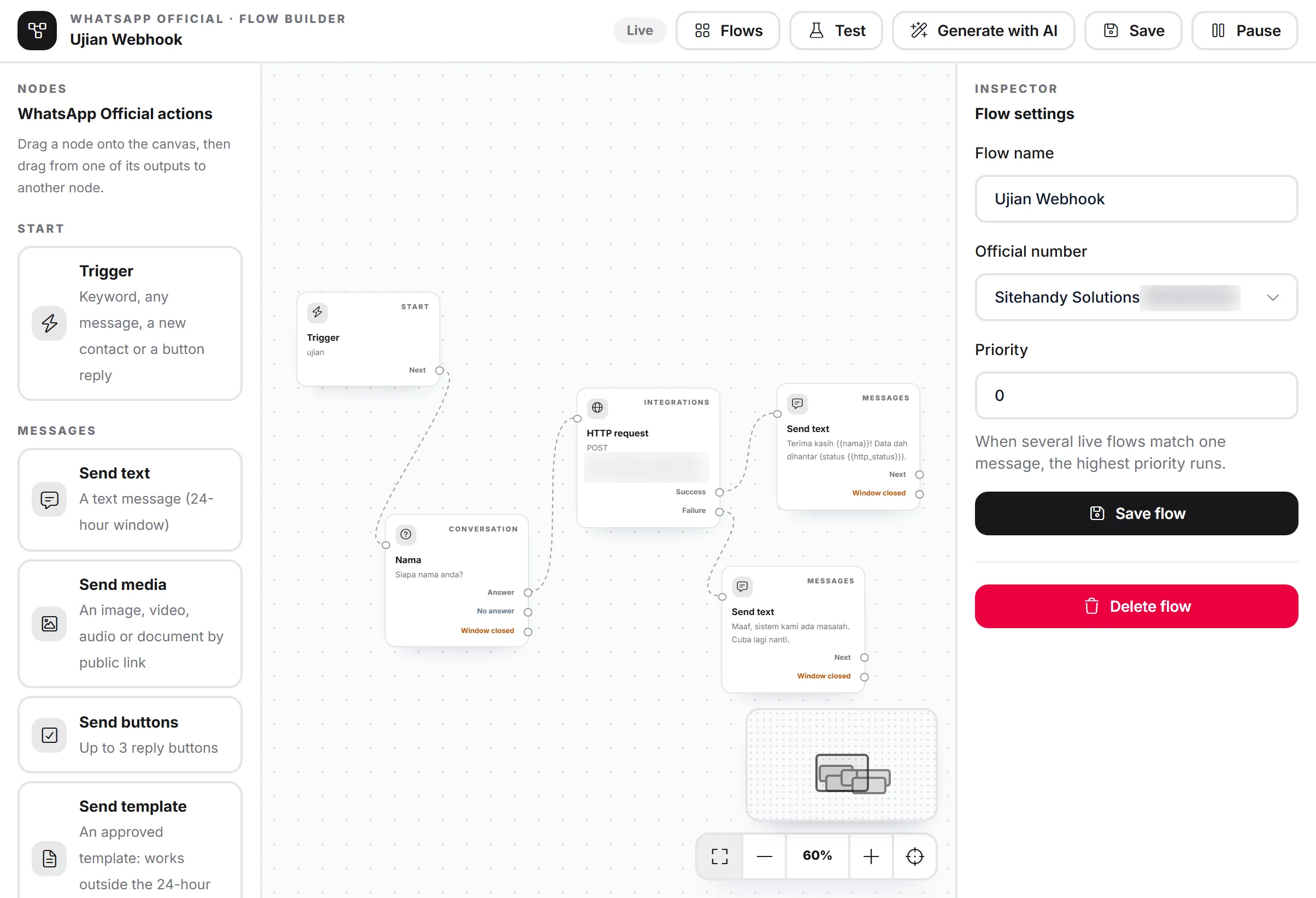
On the official API, the question and text steps also have a “Window closed” path (see the last mistake below).
3. Give a useful answer at 11 pm
A clinic gets messages long after the counter closes: “What time do you open tomorrow?”, “Is there a female doctor?” A reply that only says “We are closed” sends the patient to the next clinic on Google Maps.
- Trigger: any message.
- Condition: time of day. Inside opening hours (say 8 am to 10 pm), the flow ends and your staff take over. Outside them, it takes the night branch.
- Night branch: say when you open, then answer what you can now: hours, location and how to book. Add “For an emergency, call 999.” and tag the contact after hours so the morning team replies to them first.
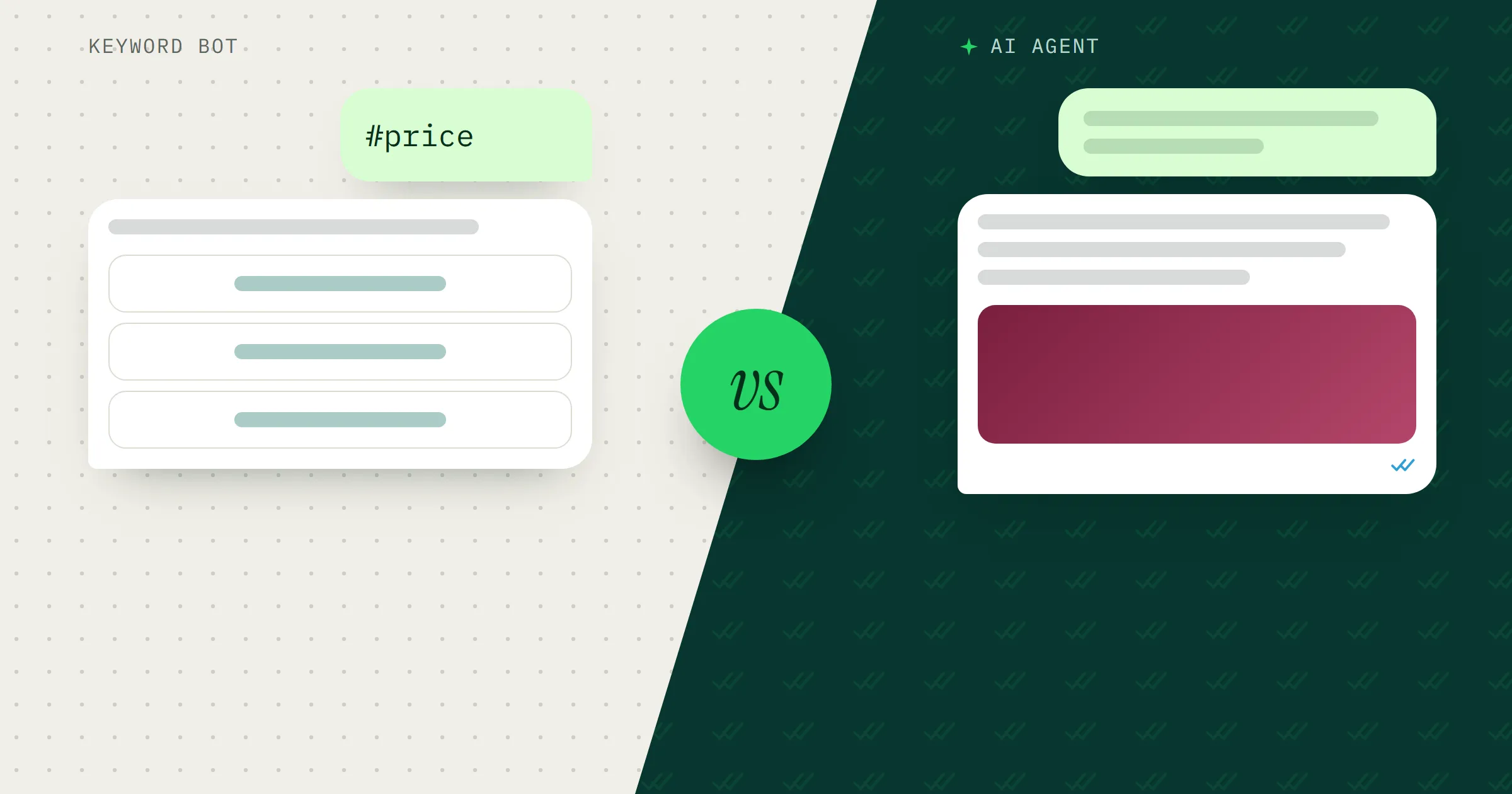
For questions beyond fixed text, add an AI reply step with an AI agent that knows your fees and services. Set its constraints so it never gives medical advice and hands over when unsure.
4. Take bookings with a form, then send a reminder
A home-tuition centre offers free trial classes, and parents send the details in pieces over a day: the child’s level, the subject, which afternoon suits them.
On the official API, send a WhatsApp Flow form instead: a short form built in Meta that opens inside WhatsApp. The parent picks the subject, the level (say, Darjah 5 or Tingkatan 3) and a time slot in one go. The answers arrive in the MacroWA Inbox and in your automation, so the flow can confirm the booking at once.
Then add a delay and a reminder sent as an approved template: “Reminder: {{child_name}}’s trial class is tomorrow at 3 pm.” It needs to be a template because the reminder may go out more than 24 hours after the parent’s last message. On the official API, only templates Meta has approved can be sent outside that window.
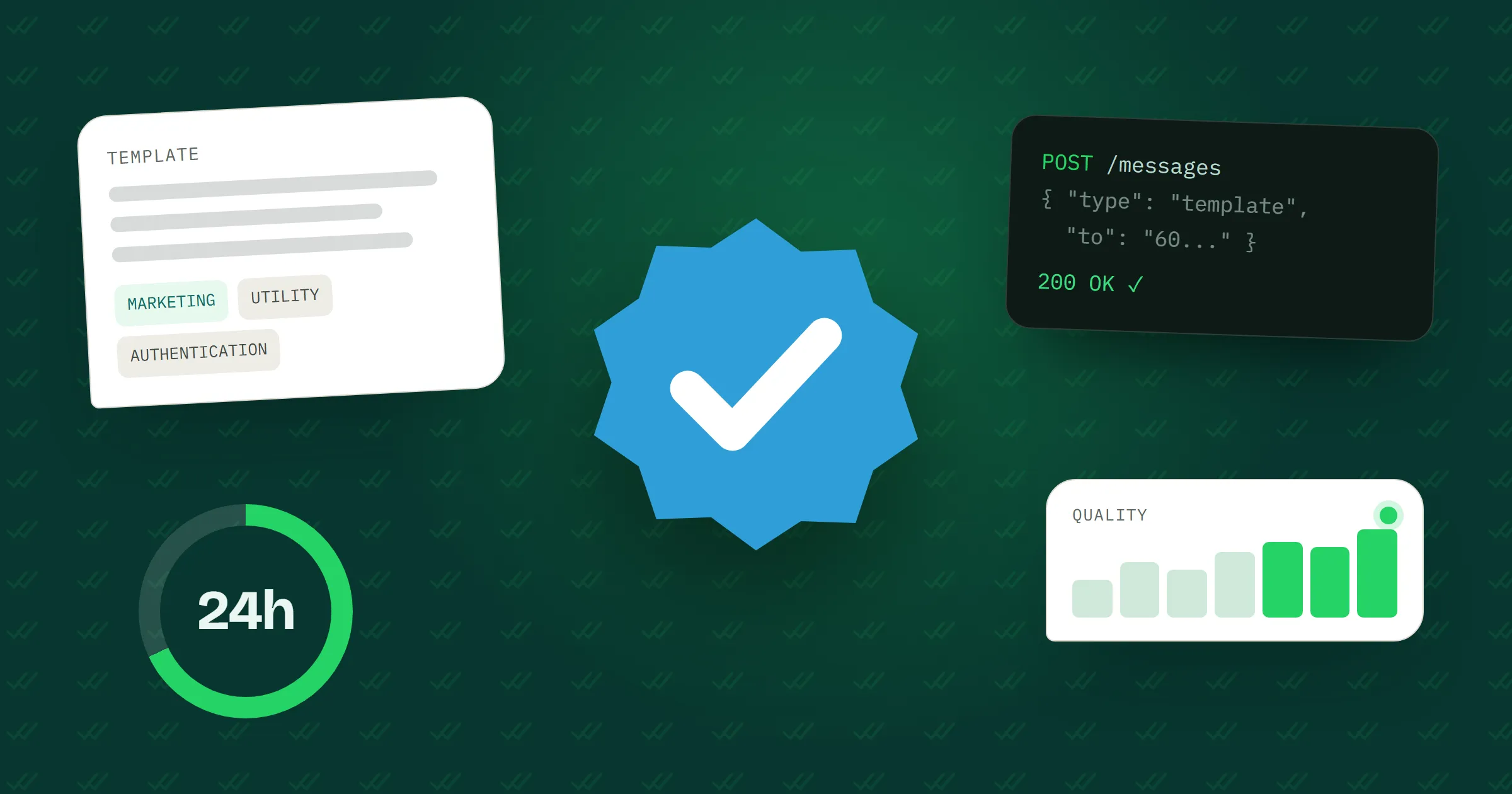
Meta sorts templates into marketing, utility and authentication. A booking reminder fits utility, which Meta describes as messages triggered by a user action or request. Keep promotions out of it, or Meta treats the template as marketing.
On the QR-code connection, collect the same details with ask-a-question steps and send the reminder as a normal message.
5. Hand the chat to a person, cleanly
Every flow above needs a way out to a human. Meta’s WhatsApp Business Messaging Policy says businesses that automate replies must offer “prompt, clear, and direct escalation paths”, and a transfer to a human agent in the chat is one of the options it lists.
Give customers three ways in:
- A keyword trigger set to “contains” for words like “agent”, “staf” and “admin”.
- A line in your AI agent’s constraints: hand over to staff when unsure.
- A staff reply. When your team answers from the phone or the dashboard, MacroWA pauses the bot for that customer automatically (30 minutes by default on the QR-code connection, and adjustable).
The hand-off step itself pauses the bot for that customer. Before it, tell the customer a person will reply, and when. After it, tag the contact needs staff, or post an alert to your team’s other tools with an HTTP request through n8n or Zapier.
How flows are built in MacroWA
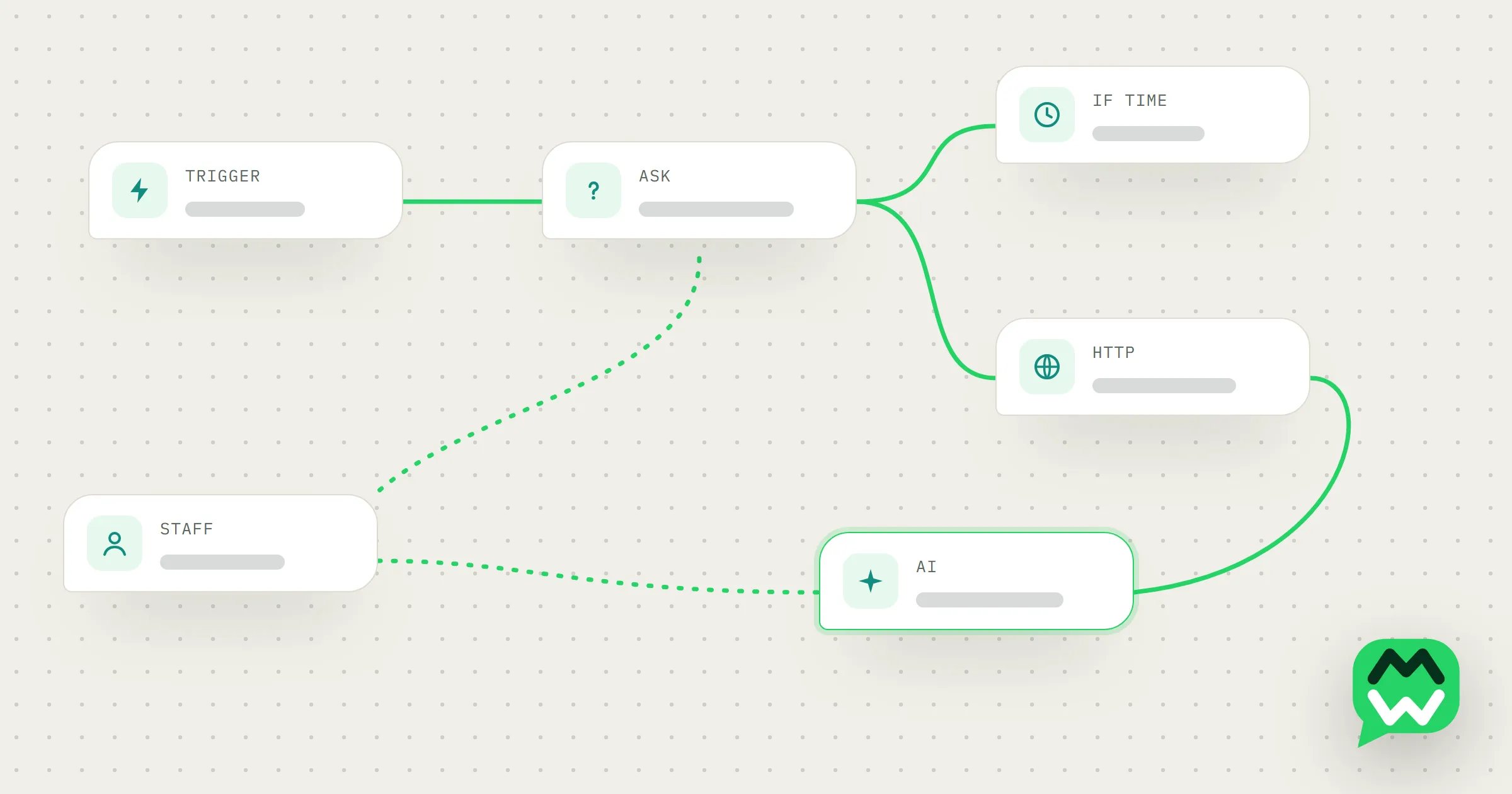
You build flows on a drag-and-drop canvas from these blocks:
- Triggers: a keyword (exact, contains or pattern), any message, a new contact, or a button or menu reply.
- Messages: text, media, buttons, menus and approved templates, plus the WhatsApp Flow form on the official API.
- Ask a question: saves the answer into a variable, with answer, no-answer and per-option branches.
- Logic: conditions on answers, contact fields, message text or time of day, and delays of minutes or hours.
- Actions: add or remove tags and groups, opt a contact in or out, reply with an AI agent, send an HTTP request, or hand off to a human.
Once you have several flows, two settings matter. Flow priority decides which flow runs when more than one live flow matches a message, so your “staf” flow should rank above the after-hours flow. Run history replays each run on a step-by-step timeline, the quickest way to see why a customer got an odd reply.
To skip the blank canvas, use Generate with AI: describe the flow in plain words (“ask new contacts for their name and area, then send it to my Google Sheet”) and you get a draft to check.
Mistakes to avoid
Flows that never end
Every branch should end with a reply, a tag or a hand-off. A no-answer branch that repeats the same question forever is worse than no flow. Run history shows the step where a run stopped.
No way to reach a human
Put Talk to staff in the welcome menu, and keep the keyword flow from automation 5 live with a high priority.
Messaging people who opted out
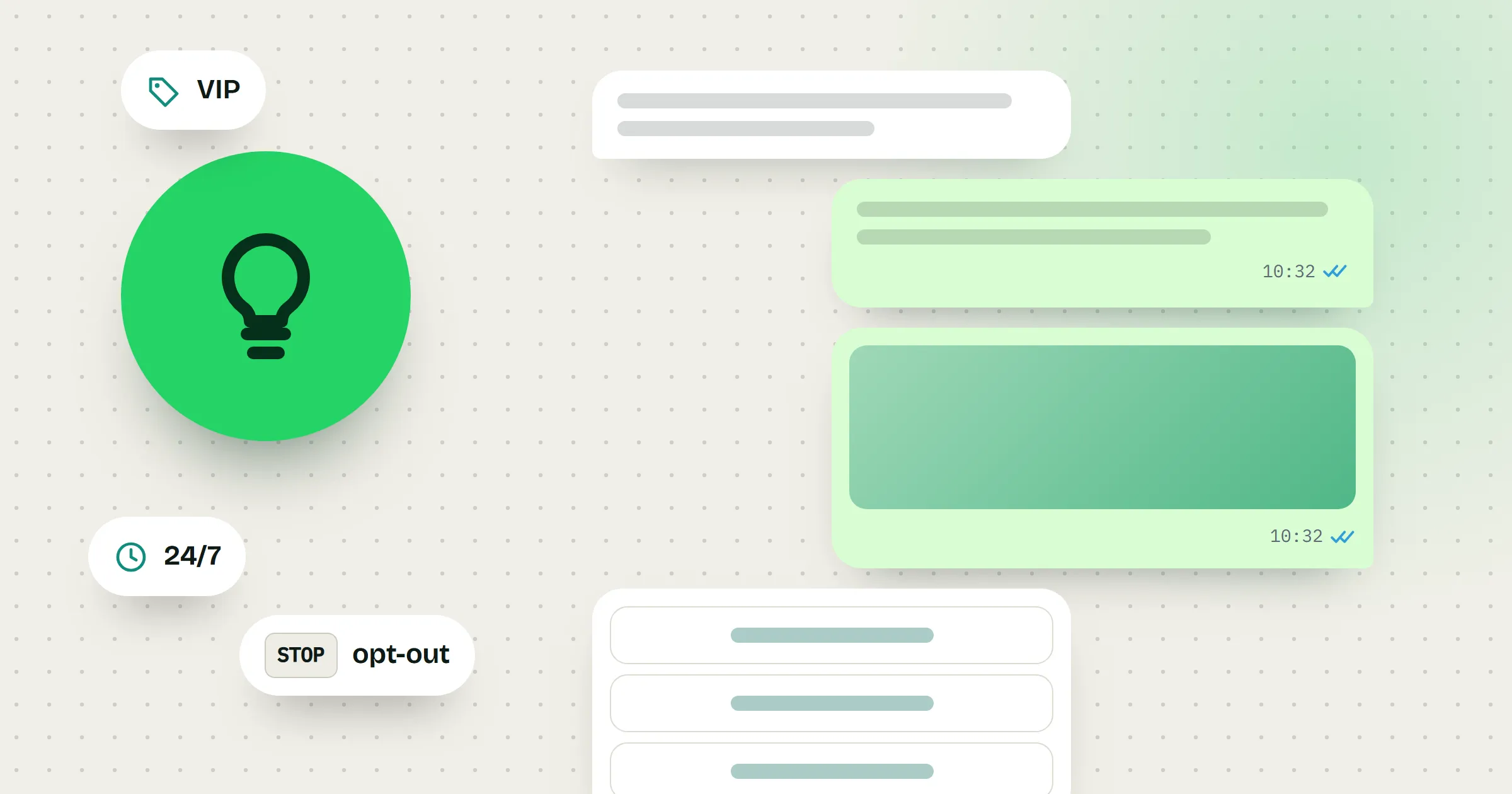
MacroWA never messages contacts who replied STOP or BERHENTI, and campaigns only go to opted-in contacts. Meta’s policy also requires opt-in before you message someone, and says you must respect opt-out requests made on or off WhatsApp. If a flow collects consent with a Yes, send me offers button, add the opt-in contact action.
Ignoring the 24-hour window on the official API
A long delay, or a no-answer branch that waits overnight, can push the next step past the 24-hour window. The flow builder follows the window rules, and steps like the question and text steps in the screenshot have a “Window closed” path. Put an approved template on that path, or end the flow there. Meta charges for each delivered template and bills you directly, so a template loop costs real money.
Where to go next
The features page lists every flow block. Still choosing between the QR-code connection and the official API? Read what the WhatsApp Business API is. For the AI reply step, see chatbot or AI agent and how an agent’s constraints work on the AI page.